Convert TAR to ZIP Online: The Complete 2026 Guide
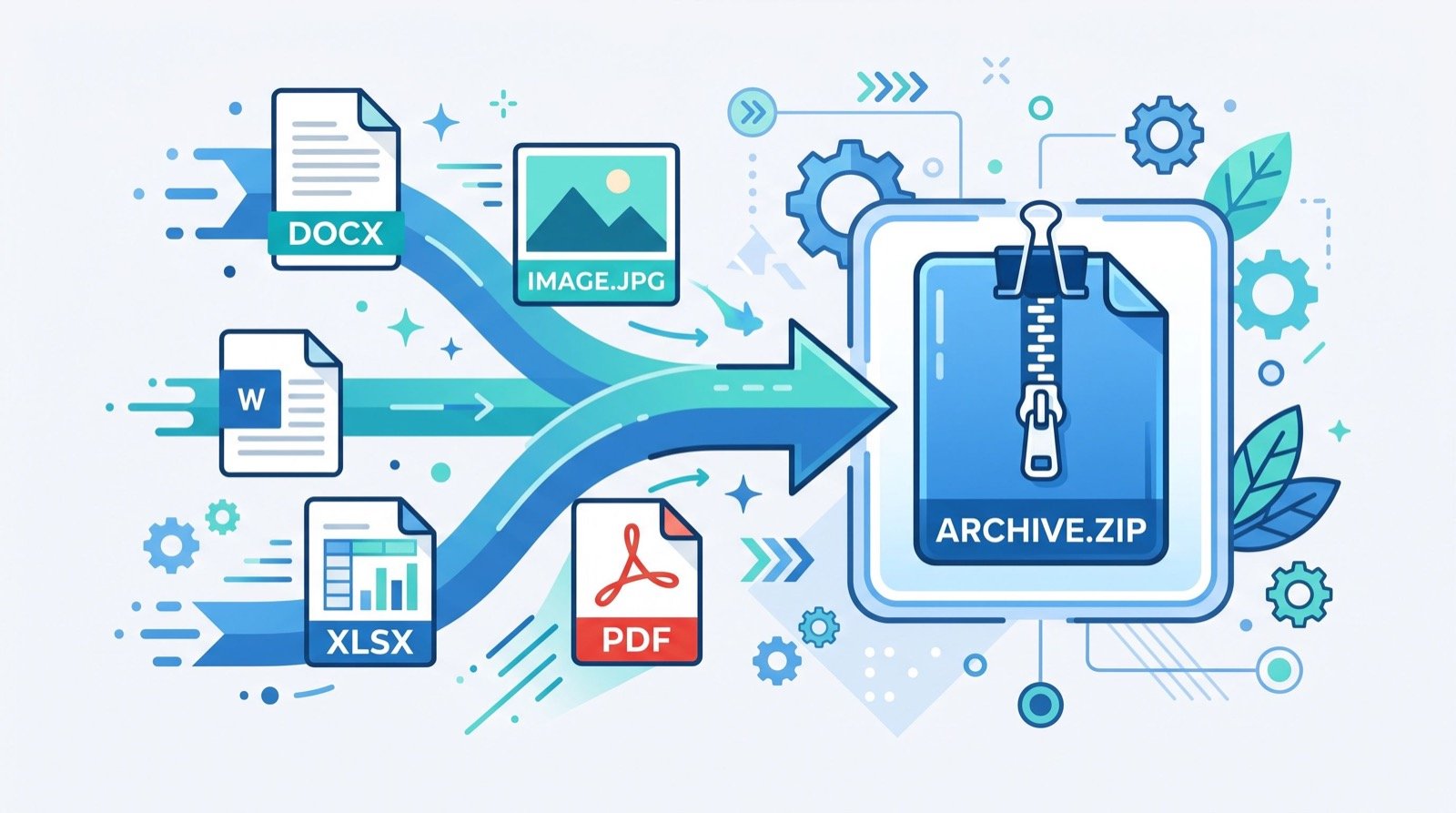
When you need to convert TAR to ZIP, the goal is usually simple: take a Unix-style archive and turn it into a format that opens natively on Windows, macOS, and virtually every device without extra software. In 2026, TAR files still arrive constantly from Linux servers, GitHub releases, and backup jobs, and ZIP remains the universal archive that anyone can double-click to open.
This guide explains exactly what separates the two formats, when you should convert TAR to ZIP, how to do it safely in your browser, and how to avoid the pitfalls that corrupt archives or lose file permissions along the way.
Why Convert TAR to ZIP in the First Place?
TAR (Tape Archive) bundles many files into one, but it does not compress on its own — that is why you often see .tar.gz or .tar.bz2, where a separate compressor squeezes the bundle. ZIP, by contrast, both bundles and compresses in a single step, and it is supported out of the box by Windows Explorer and macOS Finder.
- Universal access — recipients open ZIP without installing 7-Zip or using a terminal.
- Selective extraction — ZIP lets you pull one file without unpacking the whole archive.
- Built-in compression — a single ZIP replaces the TAR-plus-gzip two-step.
- Broad compatibility — email systems, cloud drives, and browsers all handle ZIP smoothly.
A browser tool that can convert tar to ZIP removes the need for command-line skills entirely, which is a relief when you just received an archive and need it opened now.
TAR vs. ZIP: What Actually Differs?
Both are archive formats, yet their design goals diverge. Understanding the differences helps you pick the right one for each job.
| Feature | TAR | ZIP |
|---|---|---|
| Built-in compression | No (needs gzip/bzip2) | Yes (DEFLATE and more) |
| Preserves Unix permissions | Yes, fully | Limited |
| Extract a single file | Harder — must stream | Easy — random access |
| Native OS support | Mainly Linux/macOS | Windows, macOS, Linux |
| Common uses | Server backups, source tarballs | Sharing, downloads, email |
The ZIP format is openly documented in the PKWARE APPNOTE specification, which is why so many programs across every platform can read and write it reliably. That openness is a big reason ZIP became the default for cross-platform sharing.
How Do You Convert TAR to ZIP Safely?
The cleanest path for most people is a browser-based converter, because it needs no installation and works on locked-down work machines. Follow these steps for a clean result.
- Select or drag your
.tar(or.tar.gz) file into the tool. - Let it extract the archive contents in memory.
- Choose the compression level if the tool offers one.
- Download the resulting
.zipand verify it opens with the expected folder structure. - Delete the original only after you confirm every file survived.
Prefer tools that process files locally in the browser when your data is sensitive, so nothing is uploaded to a remote server. For occasional, non-confidential conversions, any reputable online converter does the job in seconds.
Watch Out for Lost Permissions and Symlinks
The single biggest gotcha when you convert TAR to ZIP is metadata loss. TAR faithfully records Unix file permissions, ownership, and symbolic links; ZIP handles these inconsistently or not at all.
- Executable bits may be stripped, so scripts might need
chmod +xafter extraction on Linux. - Symlinks can be flattened into copies or dropped.
- Ownership is generally not preserved in ZIP.
If you are converting a deployable Linux build where permissions matter, keep the original TAR as the source of truth and treat the ZIP as a convenience copy for sharing. For plain documents, images, and code you will re-clone anyway, none of this matters.
When Should You Keep TAR Instead?
Conversion is not always the answer. Keep the TAR format when:
- You are backing up a Linux system and need exact permission preservation.
- You deploy to servers where the executable bit is required.
- You are archiving to tape or long-term cold storage that expects TAR.
- Your automation pipeline already reads
.tar.gznatively.
Choosing the right format is a bit like choosing the right vendor: match the tool to the task. When a workflow gets genuinely complex, it pays to consult reputable service experts rather than forcing a one-size-fits-all fix.
Verifying Your Converted Archive
Never assume a conversion worked — verify it. A quick integrity check saves you from shipping a broken archive to a client or teammate.
- Open the ZIP and confirm the folder tree matches the original.
- Spot-check a few files, especially the largest, for correct size.
- Compare the total file count between source and result.
- If numbers matter, a quick average calculator online helps you sanity-check batch file sizes or compression ratios across many archives at once.
Frequently Asked Questions
Will converting TAR to ZIP reduce file size?
Often yes, because ZIP applies DEFLATE compression while a plain TAR does not compress at all. However, an already-compressed .tar.gz may see little further reduction since the data is largely squeezed already.
Is it safe to convert TAR to ZIP online?
For non-sensitive files, reputable converters are safe and fast. For confidential data, choose a tool that processes files locally in your browser so nothing is uploaded to a server.
Do I lose files when converting?
You should not lose files, but you may lose Unix metadata such as permissions and symlinks. Always verify the extracted structure and keep the original until you confirm the conversion succeeded.
Can I convert a .tar.gz directly to ZIP?
Yes. A good converter decompresses the gzip layer and repackages the contents as a standard ZIP in one step, so you do not need to unpack manually first.
Conclusion
Learning to convert TAR to ZIP in 2026 gives you a universal, click-to-open archive that anyone can use, while a browser tool removes any need for the command line. Mind the metadata trade-offs, keep the original when Unix permissions matter, and always verify the result. Do that, and you get the best of both formats — TAR’s fidelity where it counts and ZIP’s convenience everywhere else.